Product showcases
Showcases display a catalog selection on a page. A custom title, such as “Best sellers”, does not change the product source. Check the Products block to find out what supplies the selection.
How to configure
Section titled “How to configure”- Open the page in the new editor and select an existing showcase or add a product preset.
- Expand the section and open Products. Select an available source, such as a store category or collection.
- Set the quantity and choose Grid or Carousel.
- Adjust desktop and mobile columns. Enable Use a different format on mobile when the devices need different formats.
- Review headings and the View all action, when present, and check its destination in the preview.
The catalog and product membership in categories or collections are managed in Nuvemshop. Renaming a showcase does not create products or a collection.
Products block controls
Section titled “Products block controls”| Control | Effect |
|---|---|
| Product source | Selects the showcase’s product set. |
| Number of products | Limits display to 1–20 items; it does not create items when the source has fewer products. |
| Format | Grid or carousel, with a separate mobile option. |
| Desktop product columns | From 3 to 6 columns. |
| Mobile layout | One or two columns; a single column supports horizontal or vertical presentation. |
These limits apply to showcases. The main category and search grid has its own controls; see Catalog, search, and filters.
Editor example
Section titled “Editor example”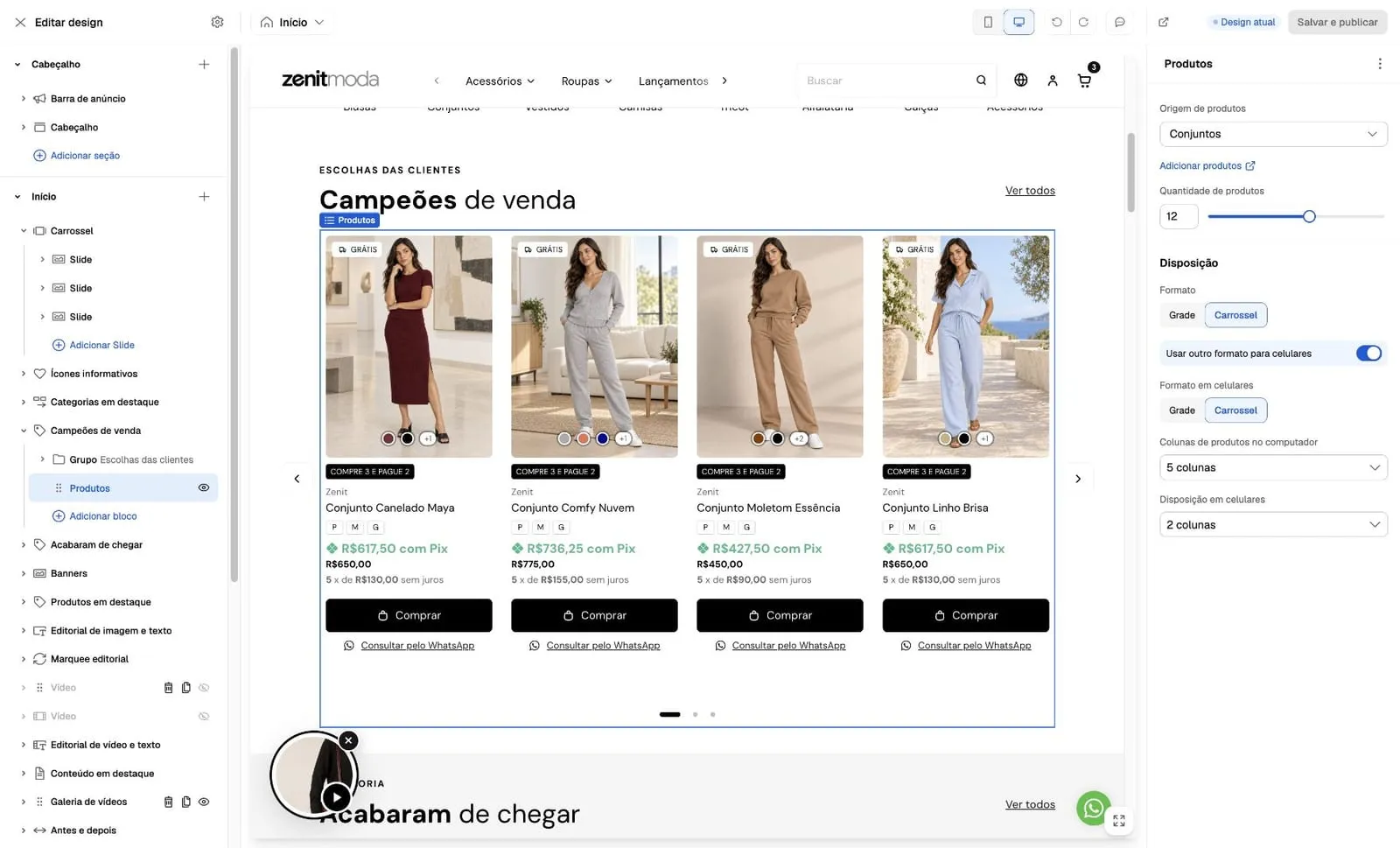
Captured on October 6, 2026, in a customized composition. The interface is in Portuguese; translated control names are descriptions. The panel shows the source and layout; prices, discounts, stock, and products are store examples. The image does not verify a purchase or represent mandatory theme defaults.
Showcase with banner and card appearance
Section titled “Showcase with banner and card appearance”For presets with a banner, also edit the Promotional panel: it has its own content and appearance. Product selection remains in Products. The section controls alignment and spacing for the composition.
Shared card appearance and quick buy are under Theme settings → Product card. Editing the product page does not automatically change those controls. See Quick buy.
When the showcase is missing
Section titled “When the showcase is missing”Check that the section and block are visible and that the source contains products. With an existing catalog, an empty source may hide the section outside the editor. The editor and a store with no active products may display examples, which do not confirm a real selection ready for sale.
Compare the same page in the preview and storefront. Check products, source, and visibility before recreating the section. To collect evidence, follow Troubleshooting and support.
See Product card for options, dependencies and differences by product type.