Typography
How to configure
Section titled “How to configure”- Open the Theme settings → Brand identity → Typography gear menu in the new editor (Brand Editor).
- Under Headings, choose font, size, and bold weight.
- Under Text, choose the font and supporting text size. Under Paragraph, adjust description and message size.
- Compare long text on the home page, product page, and cart on desktop and mobile. Review line breaks and banner height.
- Check Publish changes before applying to the store.
Global controls
Section titled “Global controls”| Group | What it controls |
|---|---|
| Headings | Family, reference size for the heading scale, and bold weight. |
| Text | Text family and supporting text size. |
| Paragraph | Base size for product descriptions, banners, and messages. |
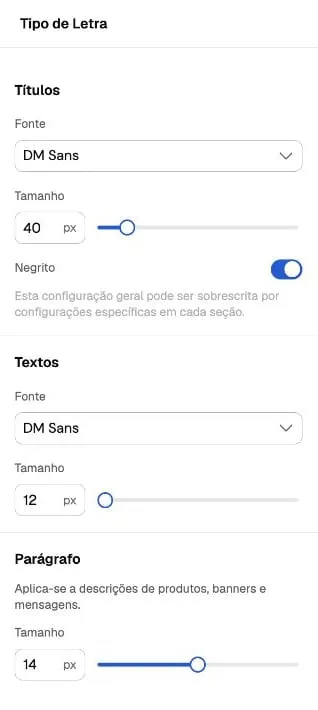
Captured on October 6, 2026. The interface is in Portuguese; translated control names are descriptions, and the panel is labeled Tipo de Letra. DM Sans and the shown sizes belong to the store example; they are not mandatory choices. The image shows loaded controls without recording a font change.
Available families appear in the selector. The theme maintains two global font choices, for headings and text; Paragraph adjusts size without creating a third family.
Local settings
Section titled “Local settings”Heading and Text blocks may have their own font or size when the composition offers those controls. The menu also has settings in the header. If only one area does not change, check its local controls before repeating the global adjustment.
Review readability
Section titled “Review readability”Use few families and reserve decorative fonts for short headings. Check accents, numbers, prices, buttons, and long text. Do not reduce body size just to fit a banner: also review content, width, and spacing.
Limitations and troubleshooting
Section titled “Limitations and troubleshooting”Some fonts do not provide every weight; the browser may simulate bold. Appearance can also vary while the font loads. If the panel does not finish loading, record the issue; do not replace sections to work around it.
Check the same page and design before comparing editor and storefront. Use Brand identity and Troubleshooting and support to collect evidence.