Banners and device-specific images
Banners arranges images and invitations in a grid or carousel. Grid banners offers another composition; check the controls present in the selected preset. Each item’s media and link are edited in its internal block, while the section defines the overall layout.
Configure a banner
Section titled “Configure a banner”- Add or select the section and check its format and columns.
- Expand the section and open a Banner block.
- Choose the image and check the Link. Also review internal text and button blocks when present.
- For a separate mobile file, enable Use another image on mobile and select the corresponding image.
- Check cropping, readability, and the link destination on desktop and mobile.
Composition and item controls differ
Section titled “Composition and item controls differ”| Setting | Location |
|---|---|
| Grid or carousel and columns | Banners section. |
| Composition aspect ratio and height | Section Design group. |
| Image file and mobile image | Banner block. |
| Item link and content | Banner block and its internal elements. |
| Text outside the image and media overlay | Block controls, depending on the composition. |
In Banners, Use a different format on mobile may appear under layout and image aspect ratio: these are separate settings. Neither replaces the file selected in the item.
Media control example
Section titled “Media control example”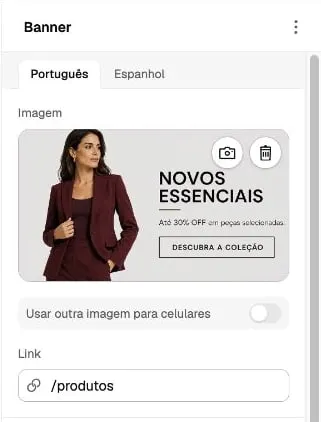
Panel crop captured on October 6, 2026. The interface is in Portuguese; translated control names are descriptions. The separate image option is disabled in this example; the capture does not show an already configured mobile file. The image, commercial text, and destination belong to the store’s composition.
Correct cropping and text
Section titled “Correct cropping and text”A wide image may lose its sides when filling a vertical area. Use device-specific framing when needed and keep the main subject away from the edges. Changing columns does not correct the file’s framing.
Text drawn inside an image cannot be changed through text blocks. Replace the media to edit that text; for editable content, use the blocks offered by the composition. Do not put essential information only in small lettering inside an image.
If an image is missing, check the selected file, mobile control, and section and item visibility. For top-of-page slides, see Slideshow; for text combinations and image comparisons, see Visual and editorial content.