Featured categories
The Featured categories section creates visual shortcuts to store categories or pages. It can use circular/square images or text pills.
Where to configure it
Section titled “Where to configure it”- Open the desired page in the new editor (Brand Editor) and select Featured categories.
- Open the Navigation block to choose type, shape, image position and size.
- Open the internal category items to check image, text and link destination.
- Review the result on desktop and mobile before publishing.
Size and quantity
Section titled “Size and quantity”With Type → Thumbnail image, the Define size by field offers:
| Option | What to adjust | When to use it |
|---|---|---|
| Size in pixels | Image size; a different mobile size is optional | To control the thumbnail’s visual dimension |
| Visible quantity | Categories visible on desktop and categories visible on mobile | To distribute shortcuts across the available width |
Quantity accepts 2 to 10 categories on desktop and 1 to 4 on mobile. Image size controls appear only for thumbnails; they do not apply to text pills.
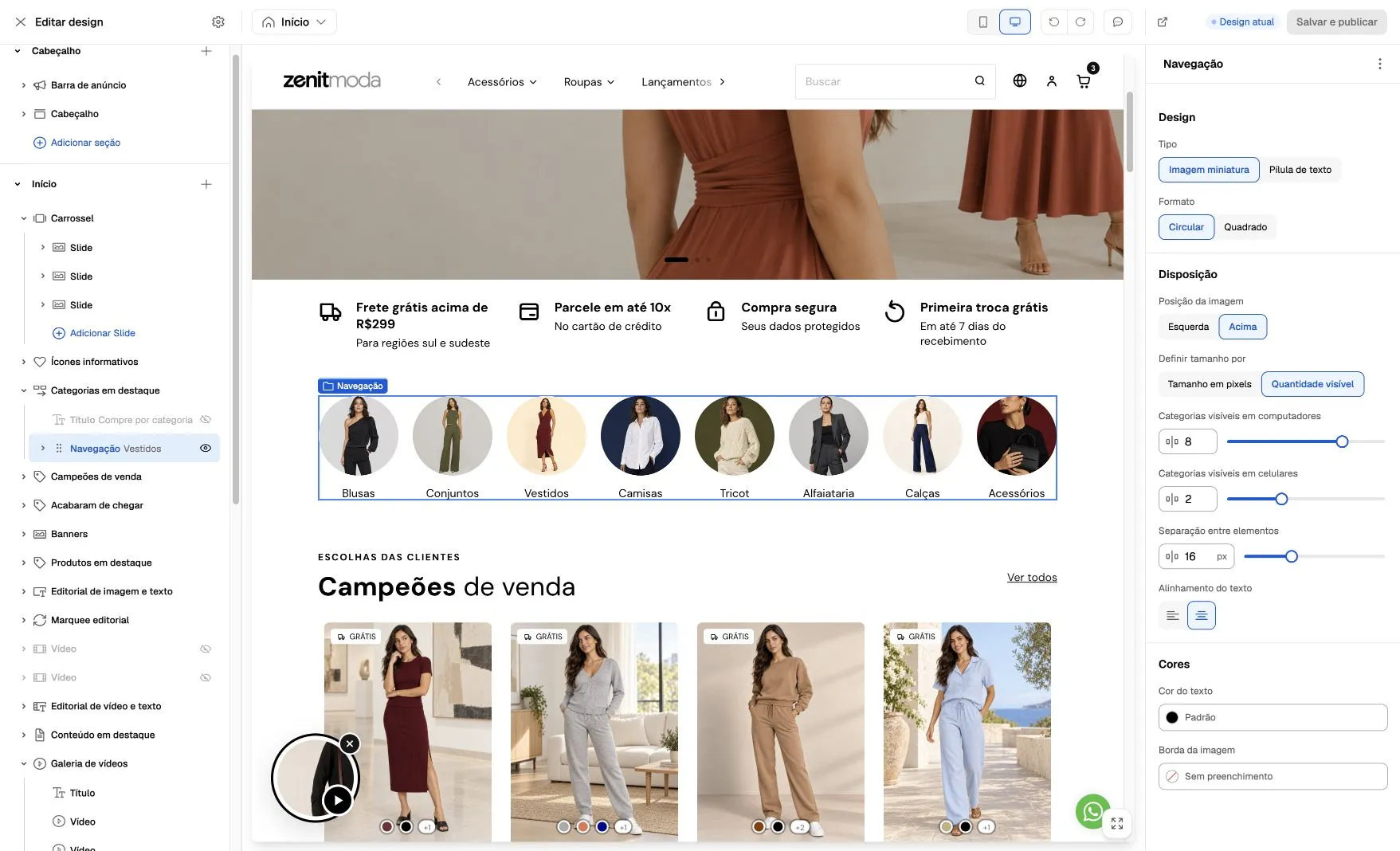
Screenshot from October 6, 2026: the example composition uses Visible quantity, eight desktop categories and two mobile categories. These are values from this demonstration store, not mandatory theme defaults.
What to check during support
Section titled “What to check during support”- If the quantity control does not appear, check Type and Define size by.
- If the image is small, check size/quantity and margins within the file itself.
- If the shortcut opens the wrong page, check each item’s link; the visual format does not choose the destination.
- Check mobile values separately and test navigation when there are more items than the visible quantity.