What is the new editor?
The new editor (Brand Editor) is the Nuvemshop visual editor for themes based on sections and blocks. Zenit is a theme for the new editor: it defines the modules, appearance options and combinations you can use to build your store.
The editor and the theme have different roles. The editor is the customization tool; the theme provides the design and components available in that tool. Options may vary between themes.
Sections, blocks and global settings
Section titled “Sections, blocks and global settings”- Section: an area of the page, such as a carousel, featured categories or testimonials.
- Block: an element inside a section, such as a carousel slide or a testimonial. The permitted block types depend on the section.
- Global setting: a shared store standard, such as colors, fonts and button styles. A section may offer its own adjustments when the theme allows them.
You work with the page composition and the content of each module. Not every area can be removed, repeated or moved: the theme defines the structure and controls of each page.
Comparison with the editor used by legacy themes
Section titled “Comparison with the editor used by legacy themes”“Legacy themes” are themes that use the previous Nuvemshop customization architecture. This does not mean they all have the same options or that they cannot rearrange modules.
| What you want to do | Editor used by legacy themes | New editor in Zenit |
|---|---|---|
| Organize a page | Module composition and order depend on the options provided by the theme. Some themes allow modules to be reordered, mainly on the home page. | Organize the sections available for that page, respecting fixed areas and theme limits. |
| Edit elements within a module | Fields are usually grouped in the module settings panel. | Select the section and, where available, its blocks to edit content and appearance. |
| Add content | Depends on the modules and spaces provided by the theme. | Add sections and blocks permitted in that area; each section offers its own types and limits. |
| Adjust appearance | Global settings and specific controls are available depending on the theme. | Global identity standards and local section and block controls are available where supported. |
| Customize pages beyond the home page | Possibilities vary by theme and page type. | Editing considers the composition of each page. For example, the Zenit product page has configurable blocks within its main structure. |
| Switch themes | Settings from the previous theme are not necessarily compatible with the next one. | The legacy editor composition is not automatically transferred to Zenit sections and blocks. |
Visual comparison: Recife and Zenit
Section titled “Visual comparison: Recife and Zenit”Captured on October 6, 2026, these images show the legacy editor with Recife and the new editor with Zenit, in Portuguese. They are configured store examples; Recife options do not represent every legacy theme. Crops preserve the panel, and values are neither recommendations nor defaults.
Organize the home page
Section titled “Organize the home page”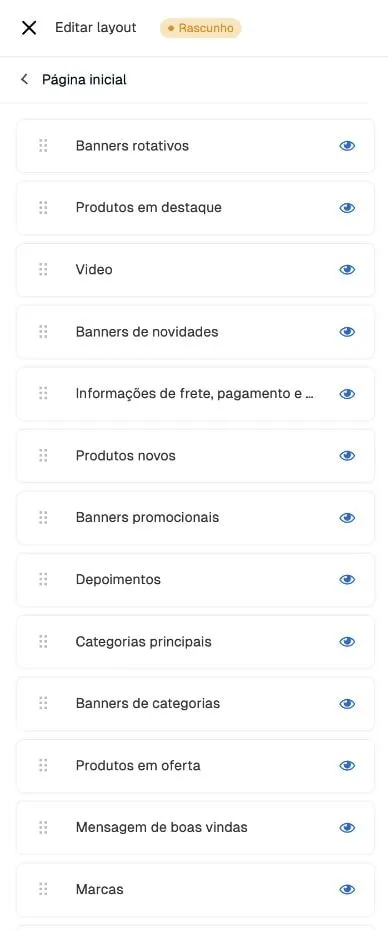
In Recife, Home groups the modules provided by the theme, with order and visibility controls. It also allows reordering the home page.
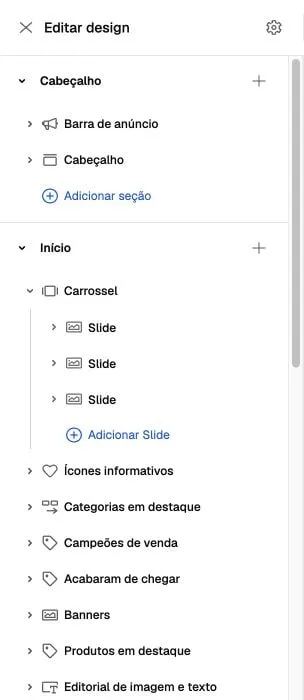
In Zenit, the tree distinguishes areas, sections and blocks. Carousel contains its own slides; Add section and Add Slide have different functions. A section can be renamed in the composition without changing its type.
Edit banner images
Section titled “Edit banner images”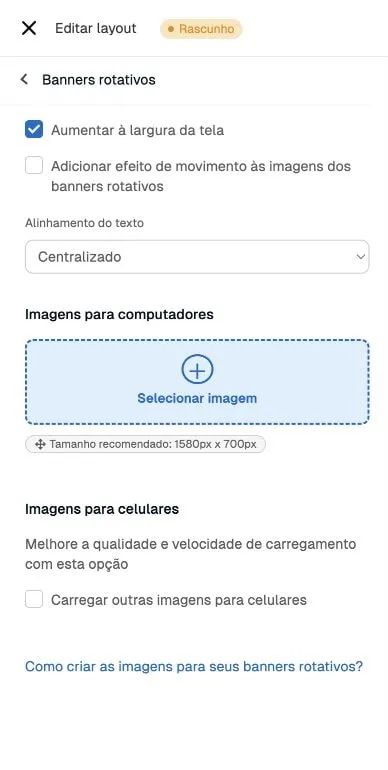
In the observed Recife, Rotating banners groups alignment, motion and device images in the module panel.
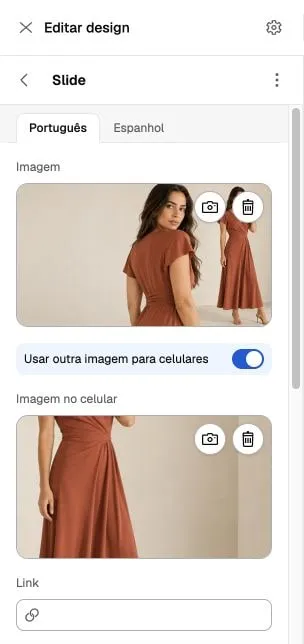
In Zenit, select a Slide to edit its images and link. The Carousel section controls the whole group’s behavior; text and buttons may belong to blocks within the slide. The new editor does not automatically migrate Recife images or composition.
Save controls also differ: the observed Recife installation separates Save draft from Publish; Zenit shows Save and publish. Do not treat this as private saving. See Publish changes.
Example: build a carousel
Section titled “Example: build a carousel”In Zenit, add the carousel section to the home page and configure each slide as a block. You can then edit images, text and links and rearrange slides using the section controls.
If you previously used a legacy theme, first look for the equivalent module in the new editor. Control placement and the way content is organized may be different. See the carousel guide for Zenit options.
What to review when switching themes
Section titled “What to review when switching themes”Switching themes concerns the store presentation. Products, categories, payments and shipping are still managed in their own Nuvemshop areas; the editor does not replace those records.
Before publishing Zenit:
- Review store identity, the header, menus and the footer.
- Build pages with the available sections and replace example images and text.
- Check products and categories selected in modules, links and institutional content.
- Validate the presentation on desktop and mobile, as well as shopping features and the apps used by the store.
- Review customizations from the previous theme with the responsible partner; they may need adaptation.
Do not consider the old theme’s visual settings a ready-to-use configuration for Zenit. See Getting started and Publish changes to prepare the store.
Start with the editor
Section titled “Start with the editor”To explore the panel, follow Open the new editor. To explore modules, see Sections and pages.
Nuvemshop also introduces the concept on the official new editor page. The availability of controls and modules in this documentation refers to Zenit.